

Documentation Index
Fetch the complete documentation index at: https://allhandsai-add-support-policy.mintlify.app/llms.txt
Use this file to discover all available pages before exploring further.
Overview
The LLM settings allows you to bring your own LLM and API key to use with OpenHands. This can be any model that is supported by litellm, but it requires a powerful model to work properly. See our recommended models here. You can also configure some additional LLM settings on this page.Basic LLM Settings
The most popular providers and models are available in the basic settings. Some of the providers have been verified to work with OpenHands such as the OpenHands provider, Anthropic, OpenAI and Mistral AI.- Choose your preferred provider using the
LLM Providerdropdown. - Choose your favorite model using the
LLM Modeldropdown. - Set the
API Keyfor your chosen provider and model and clickSave Changes.
Advanced LLM Settings
Toggling theAdvanced settings, allows you to set custom models as well as some additional LLM settings. You can use
this when your preferred provider or model does not exist in the basic settings dropdowns.
Custom Model: Set your custom model with the provider as the prefix. For information on how to specify the custom model, follow the specific provider docs on litellm. We also have some guides for popular providers.Base URL: If your provider has a specific base URL, specify it here.API Key: Set the API key for your custom model.- Click
Save Changes
Memory Condensation
The memory condenser manages the language model’s context by ensuring only the most important and relevant information is presented. Keeping the context focused improves latency and reduces token consumption, especially in long-running conversations.Enable memory condensation- Turn on this setting to activate this feature.Memory condenser max history size- The condenser will summarize the history after this many events.
LLM Profiles
LLM profiles allow you to save multiple LLM configurations and switch between them, even during an active conversation. This is useful when you want to use different models for different tasks—for example, a faster model for simple tasks and a more powerful model for complex reasoning.Creating an LLM Profile
Profiles are automatically created when you save a configuration on the LLM settings page. To create a new profile:- Navigate to
Settings > LLM. - Configure your desired LLM provider, model, and API key.
- Click
Save Changes.
Add LLM Profile button in the Available Profiles section to create a new profile
directly.
Managing LLM Profiles
You can manage your saved profiles in theAvailable Profiles section of the LLM settings page. Each profile shows:
- Profile name: A unique identifier for the configuration
- Model: The LLM model associated with the profile
- Active badge: Indicates which profile is currently active
- Edit: Modify the profile’s LLM configuration
- Rename: Change the profile name
- Set as Active: Make this profile the default for new conversations
- Delete: Remove the profile
You can save up to 10 LLM profiles per account. Delete unused profiles if you need to create new ones.
Switching Profiles During a Conversation
One of the most powerful features of LLM profiles is the ability to switch models mid-conversation without losing context. This allows you to:- Start with a fast, cost-effective model for initial exploration
- Switch to a more powerful model when the task requires deeper reasoning
- Use specialized models for specific types of tasks
| Example Profile | Example Use | Example Cost Pattern |
|---|---|---|
claude-opus-4-7 | Frontend design and visual polish | Higher cost |
gpt-5.5 | Planning, instruction following, or review | Balanced for complex reasoning |
minimax-m2.7 | Day-to-day implementation | Lower cost |
- Look for the profile selector button in the chat input area. It displays the name of the currently active profile.
- Click the button to open the profile menu.
- Select the profile you want to switch to.
Switching Profiles with the /model Slash Command
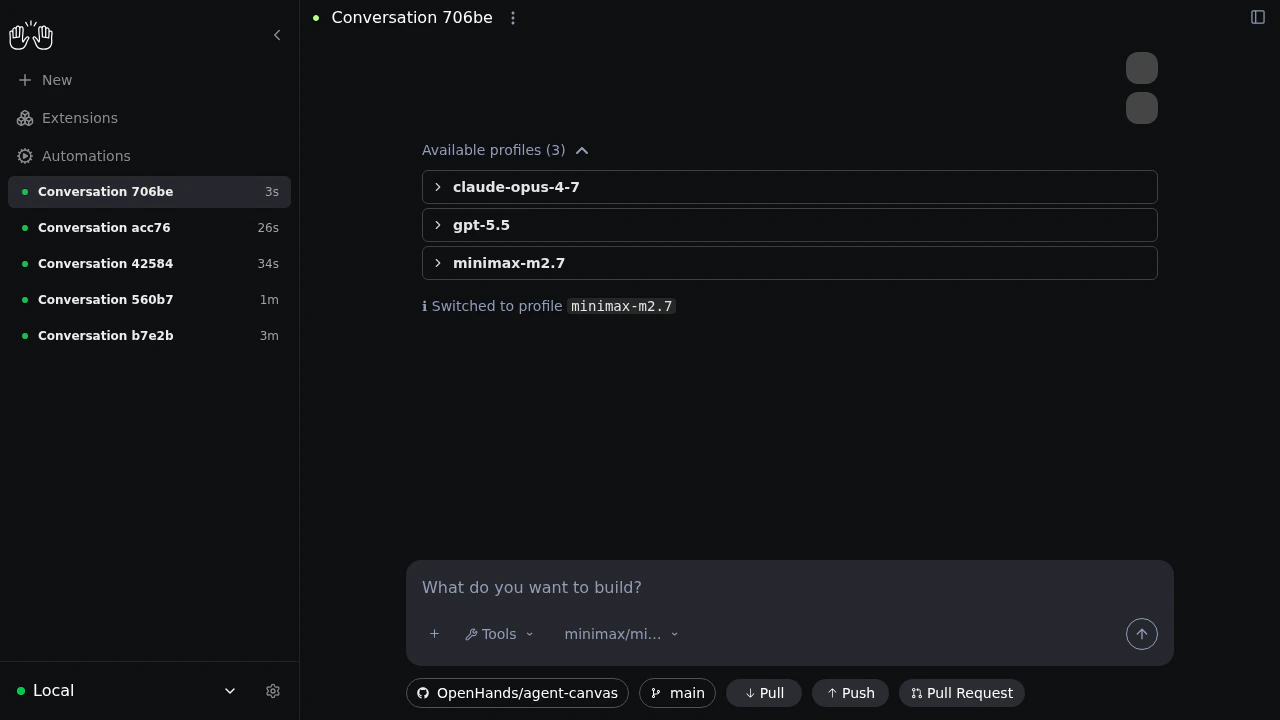
You can also list and switch profiles directly from the chat input using the /model slash command:
/model— Lists your saved LLM profiles./model <profile-name>— Switches the running conversation to that profile.
-
Start the conversation with
gpt-5.5selected. -
Ask OpenHands to plan the work before editing files:
-
Send
/modelto list available profiles. -
Send
/model minimax-m2.7to switch profiles. -
Ask OpenHands to implement the plan:
Model switching requires saved LLM profiles. If
/model is not suggested in the chat input, create profiles in
Settings > LLM and confirm that your backend supports profile switching.Letting the Agent Select Models Dynamically
When the model selection tool is available, the agent can choose a saved profile for the next phase of work. For example, it can implement frontend changes with a design-focused model and then switch to an instruction-following model for review. In the Agent SDK, this capability is exposed as the built-inSwitchLLMTool, which produces switch_llm tool calls.
Agent Canvas displays those tool calls as Switch LLM profile events in the conversation timeline so you can see when
and why the model changed.
Create the profiles you want the agent to choose from, then ask OpenHands to use specific profiles for different phases
of the task. For example:
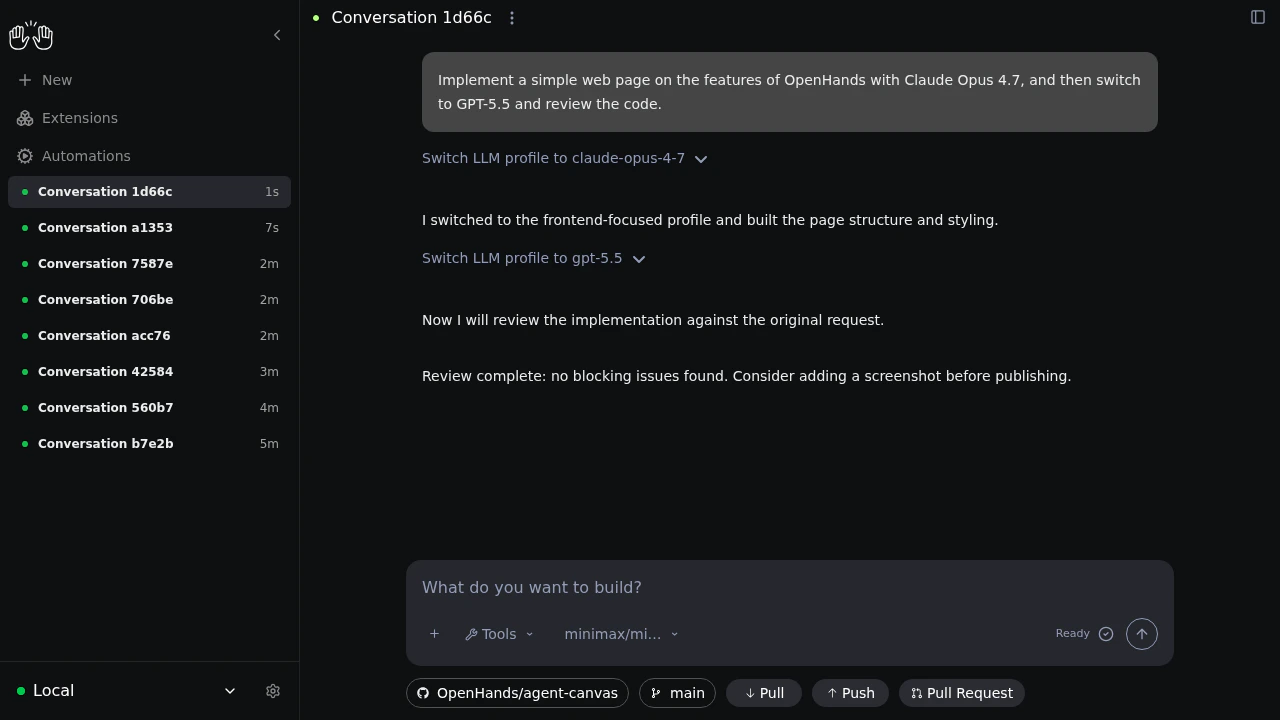
- The current model decides to call the tool and provides a short reason.
- The switch takes effect on the next LLM call after the tool succeeds.
- Conversation history, files, and task state are preserved.
- If a profile name is missing or misspelled, the tool returns an error and the agent should choose a valid profile or ask for help.
SwitchLLMTool when constructing the agent. See the SDK example:
examples/01_standalone_sdk/49_switch_llm_tool.py.
How Profile Switching Works
When you switch profiles during a conversation:- The new LLM configuration is loaded from your saved profile
- The conversation context (all previous messages and actions) is preserved
- Future messages are processed using the new model
- The conversation metadata is updated to reflect the new model
Best Practices for Using LLM Profiles
- Name profiles descriptively: Use names like “Claude Sonnet - Fast” or “GPT-4 - Complex Tasks” to easily identify which profile to use.
- Create task-specific profiles: Set up profiles optimized for different workflows, such as code review, documentation, or debugging.
- Keep API keys updated: Ensure each profile has a valid API key.
- Test before critical work: When switching profiles mid-conversation, send a simple test message to confirm the new model is responding correctly.